Task Manager
The Task Manager handles backend operations such as sending site e-mailed notifications, updating counters, etc.
In order to manage tasks, you'll need to be logged in to your ACP.
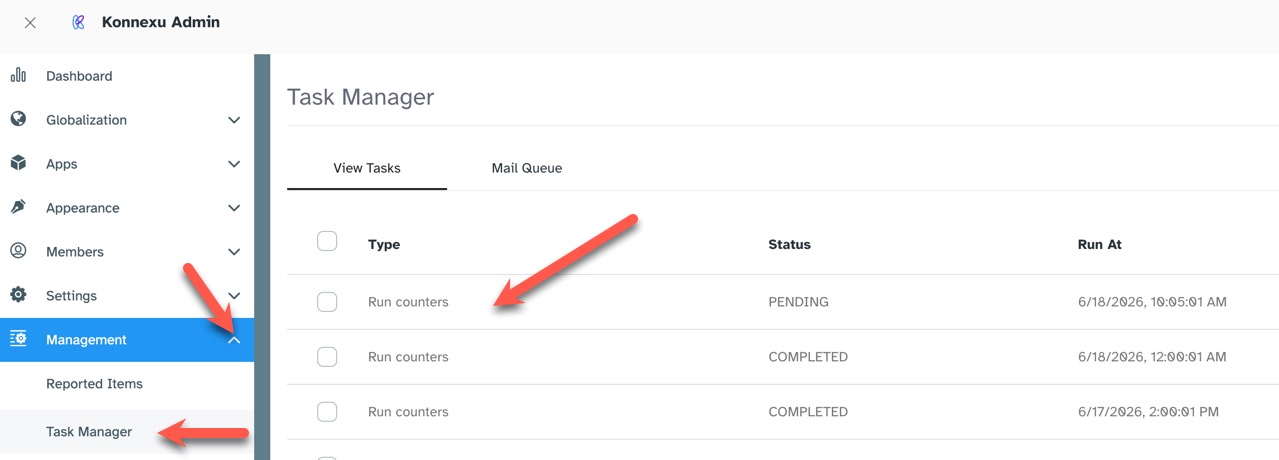
Navigate to Management › Task Manager.
You'll see a list of the tasks to the right, as well as two tabs. "View Tasks" shows all tasks, "Mail Queue" shows just the mail tasks.
View Tasks
To view all tasks, click the "View Tasks" tab if you were in another tab in the Task Manager. This is also the default tab that opens when you first open the task manager.
The columns for the tasks are:
- Type - this shows the type of task being run.
- Status - this shows the status of the task such as "Pending," "Completed," "In Process" etc.
- Run At - this shows when the task is set to run.
Running Tasks
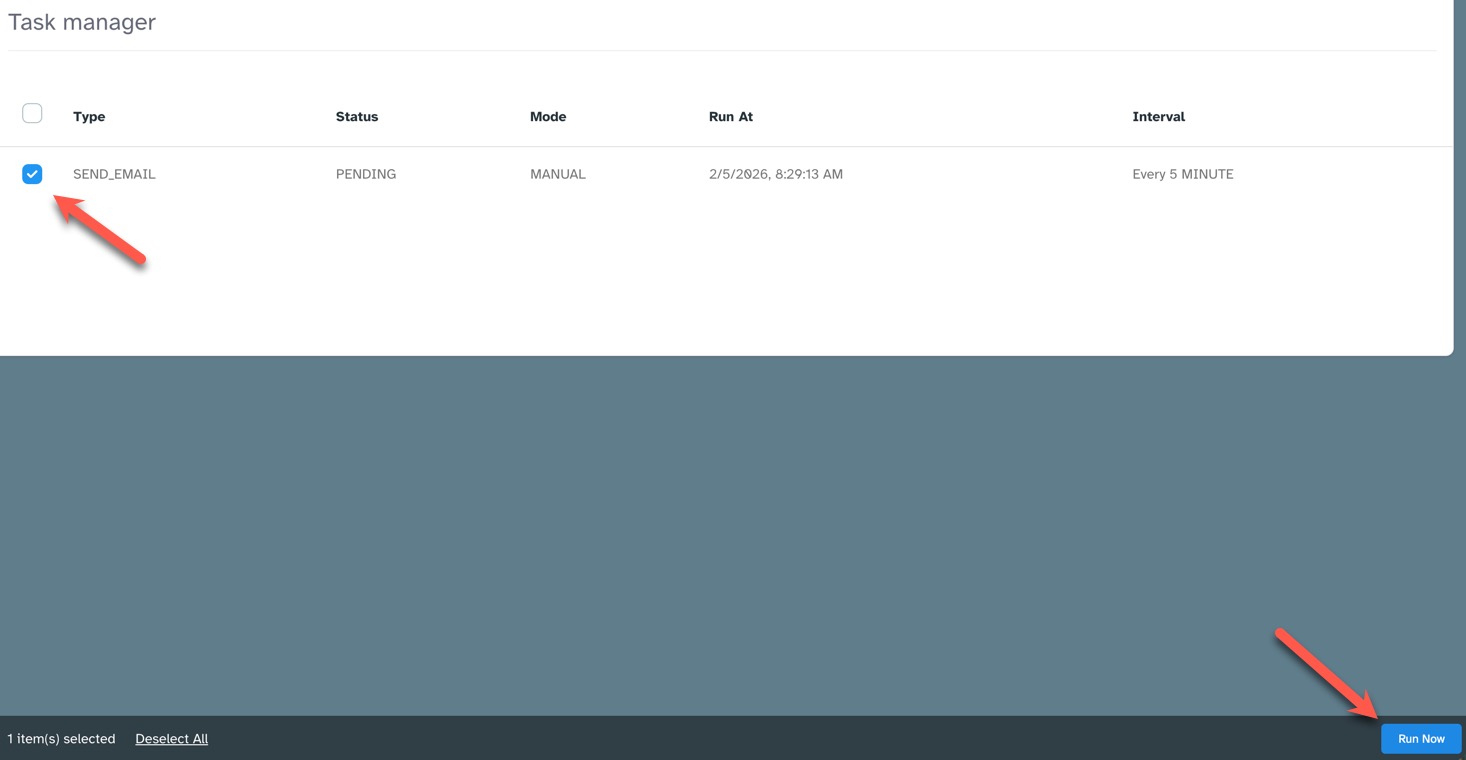
To run one, or more, tasks, click the checkbox to the left of each task you want to run. If you want to run all tasks, click the toggle at the top of the left column to select all tasks. Click the Run Now button on the bottom right.
Purge Completed Tasks
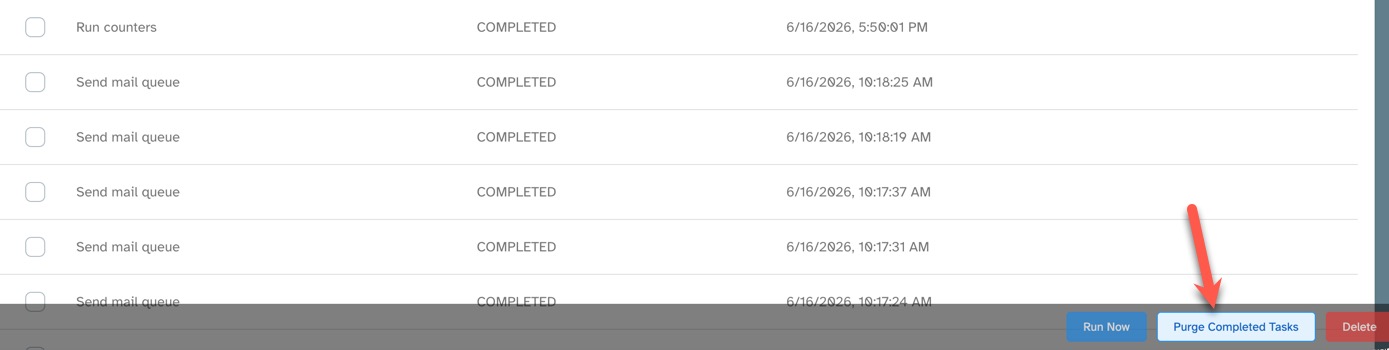
Tasks will auto-purge at a set interval of 5 days. If you want to purge tasks sooner than that, click the Purge Completed Tasks button at the bottom of the "View Tasks" page.
Deleting Tasks
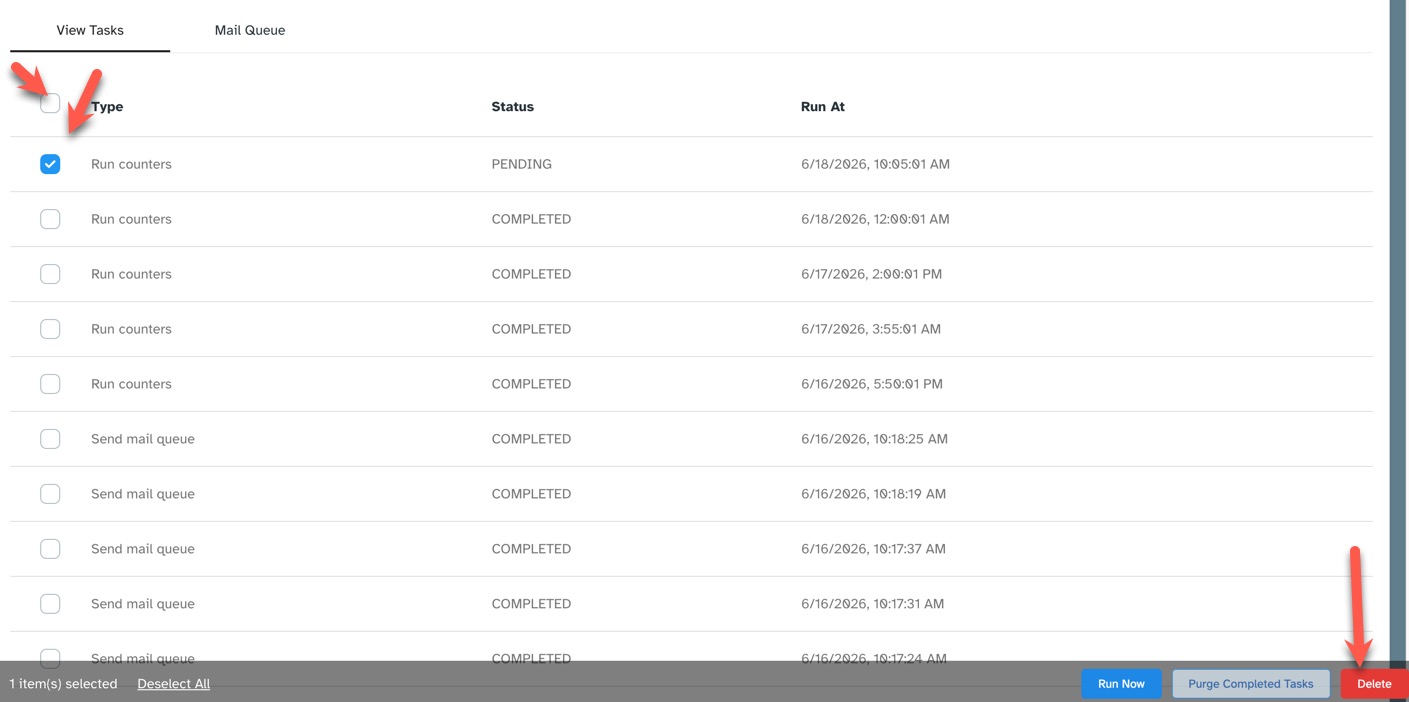
To delete one, or more, tasks, click the checkbox to the left of each task you want to delete. If you want to delete all tasks, click the toggle at the top of the left column to select all tasks. Click the Delete button on the bottom right.
Mail Queue
Click the "Mail Queue" tab to open the queued, sent mail in the task manager. This shows all sent notifications.
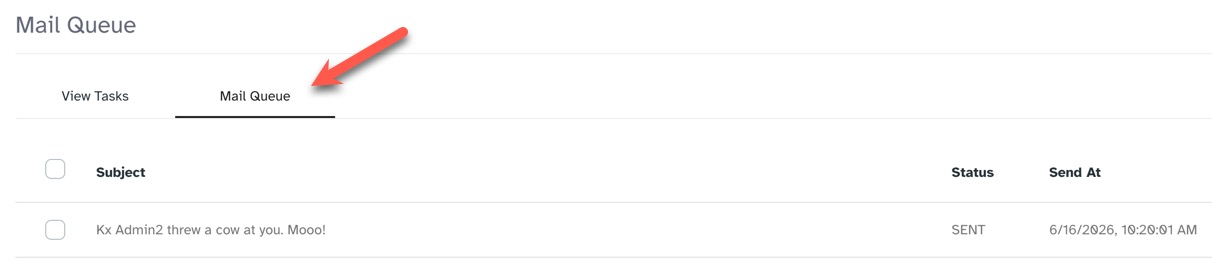
The columns for the tasks are:
- Subject - this shows the subject of the mail.
- Status - this shows the status of the mail such as "Sent," etc.
- Send At - this shows when the mail is/was sent.
Re-send Mail
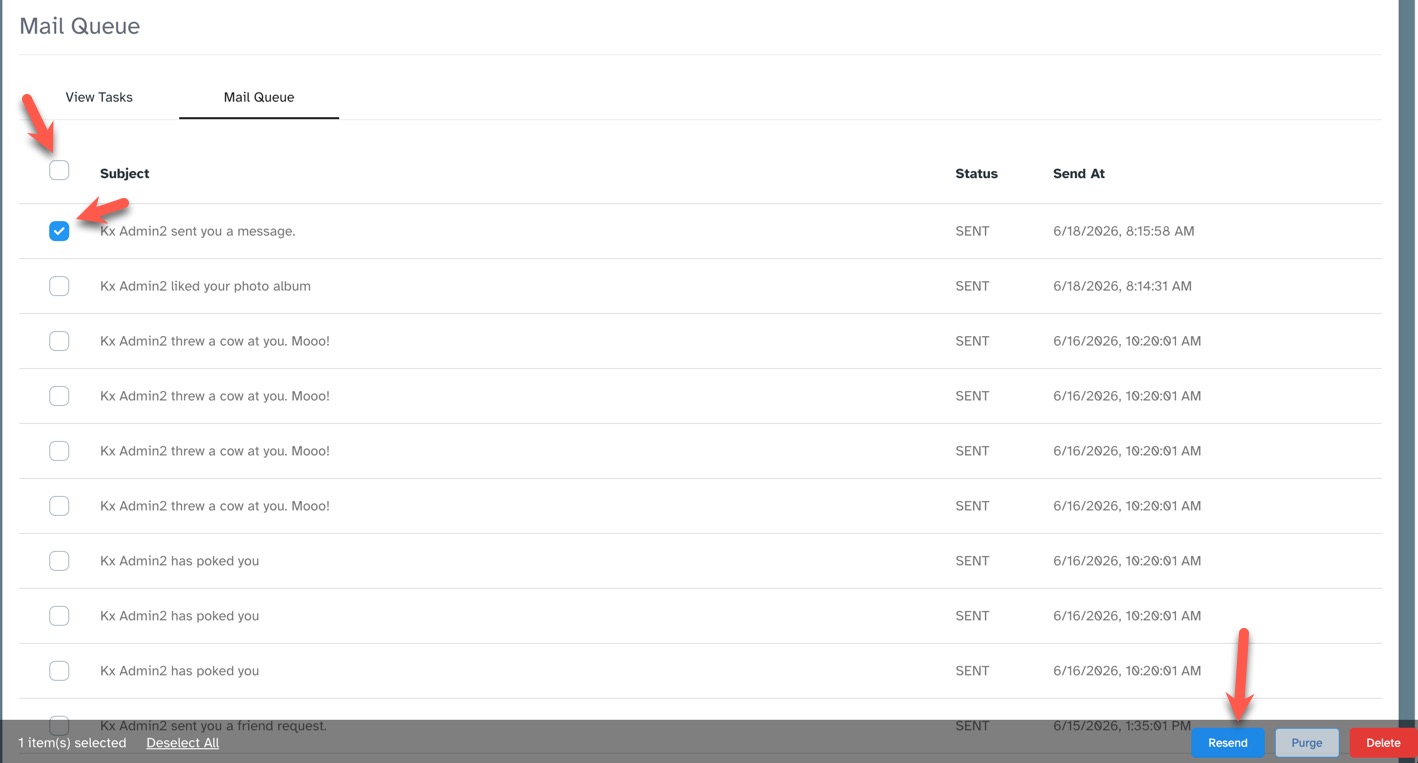
To re-send one, or more, Emailed notifications, click the checkbox to the left of each one that you want to re-send. If you want to re-send all Emailed notifications, click the toggle at the top of the left column to select all Emails. Click the Resend button on the bottom right.
Purge Sent Mail
Sent Emailed notifications will auto-purge at a set interval of 5 days. If you want to purge these sooner than that, click the Purge Sent Mail button at the bottom of the "Mail Queue" page.

Delete Sent Mail Queue
Sent Emailed notification tasks can be deleted if you want to reduce the list and know you won't need to re-send them. Click the Delete button at the bottom of the "Mail Queue" page.

Need help?
If you need any help, drop us a line at our Konnexu Support Portal or ask a question at the Konnexu Community. We're always happy to assist.