Konnexu Client Account
Your Konnexu Client Dashboard is where you'll manage your sites and services, view invoices, update account information, and manage your subscriptions.
Starting Your First Site
New to Konnexu? Follow these easy steps to create your trial site!
Already have a Konnexu site and want another? See our Managing Your Subscriptions guide.
Konnexu Trial Quick Start
- Sign in to your Konnexu Client Portal.
- Select Get the Konnexu trial.
- Enter your full domain or subdomain.
- Select your datacenter.
- Choose your DNS option:
- Main domain: Enable Konnexu DNS Manager for easier setup, or leave it disabled to use your own DNS provider.
- Subdomain of an existing website: Leave Konnexu DNS Manager disabled.
- Click Submit.
Before you start: You'll need a domain purchased from a registrar, such as Porkbun, Namecheap, NameSilo, or Cloudflare. Free domains aren't supported.
Using Cloudflare?
If your domain is registered with Cloudflare, you cannot use Konnexu DNS Manager because Cloudflare doesn't allow changing nameservers for domains registered there. You can still configure your DNS records manually.
Watch the Setup Video
Prefer to watch? This video shows the trial site setup process.
Want a little more guidance? Open the full step-by-step guide
Follow these instructions if you'd like more detail about each step.
-
Open the Dashboard. Once you've created your account, you'll be on the Dashboard main page. Click Get the Konnexu trial.
-
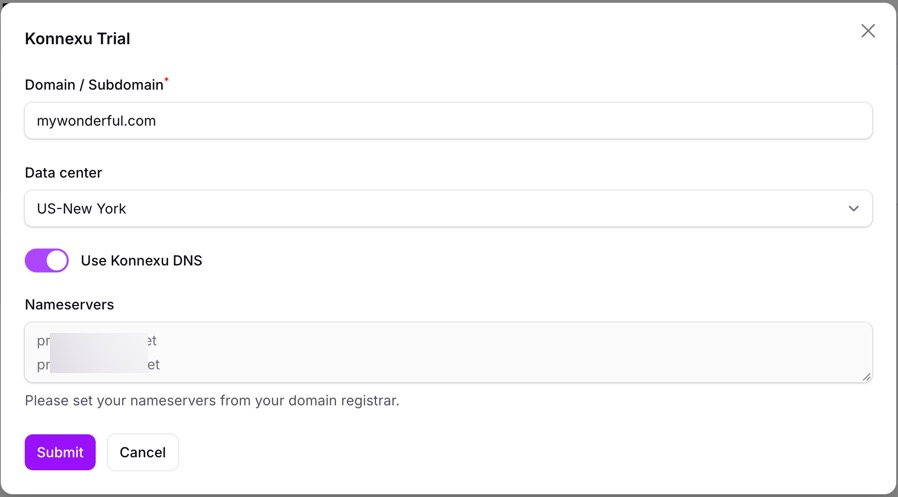
Enter your domain. Enter your full domain or subdomain, such as
example.comorcommunity.example.com. -
Choose a datacenter. Select the datacenter closest to your location.
-
Configure DNS. Choose the option that applies to your site:
-
Using your main domain: Enable Konnexu DNS Manager (recommended) to have your site's DNS records configured automatically. You'll receive two nameservers to enter at your domain registrar.
-
Using a subdomain of an existing website: Leave Konnexu DNS Manager disabled. You'll need to add an A record for your subdomain with your current DNS provider.
-
Using your own DNS provider: Leave Konnexu DNS Manager disabled and create the required A record.
For instructions, see our Adding an A Record guide.
-
-
Create your site. Click Submit to create your Konnexu trial site.
-
Wait for DNS propagation. DNS changes can take up to 24–48 hours to take effect, although they often update much sooner.
Using Konnexu DNS Manager? Remember to update your domain's nameservers at your registrar using the two nameservers provided during setup. Your registrar can assist you if needed.
Need help?
If you need any help, drop us a line at our Konnexu Support Portal or ask a question at the Konnexu Community. We're always happy to assist.