Themes
Konnexu themes are created using the Tailwind CSS framework.
In order to manage the below settings, you'll need to be logged in to your ACP.
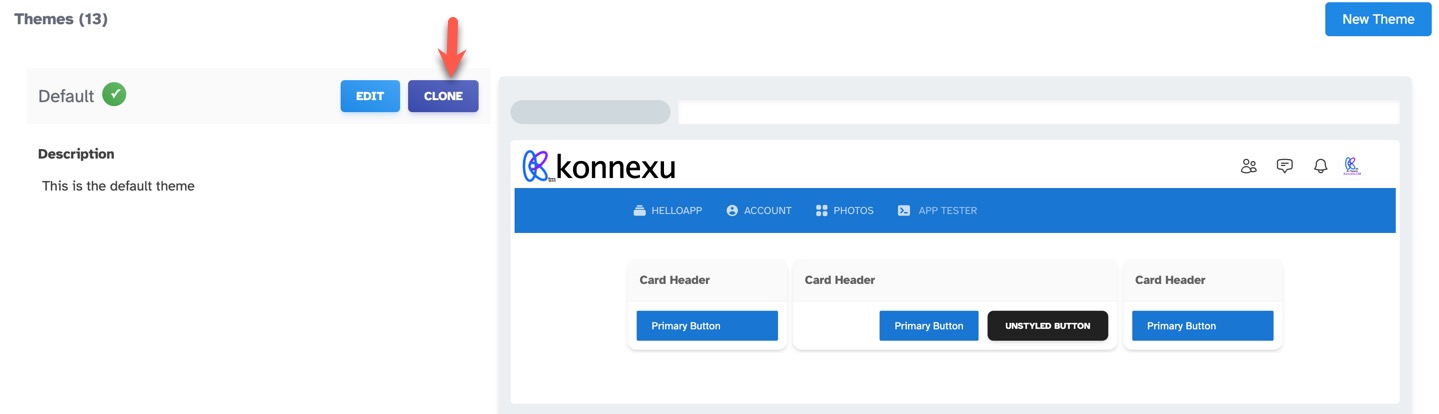
Once logged in to the ACP, navigate to Appearance › Themes. Please first clone the default theme as it cannot be edited.
How to Clone a Theme
Click the "Clone" button for the theme you want to clone. This will make a copy of the theme for you to work on. We recommend making a copy of the default
theme before making any changes.
Setting a Theme as Default
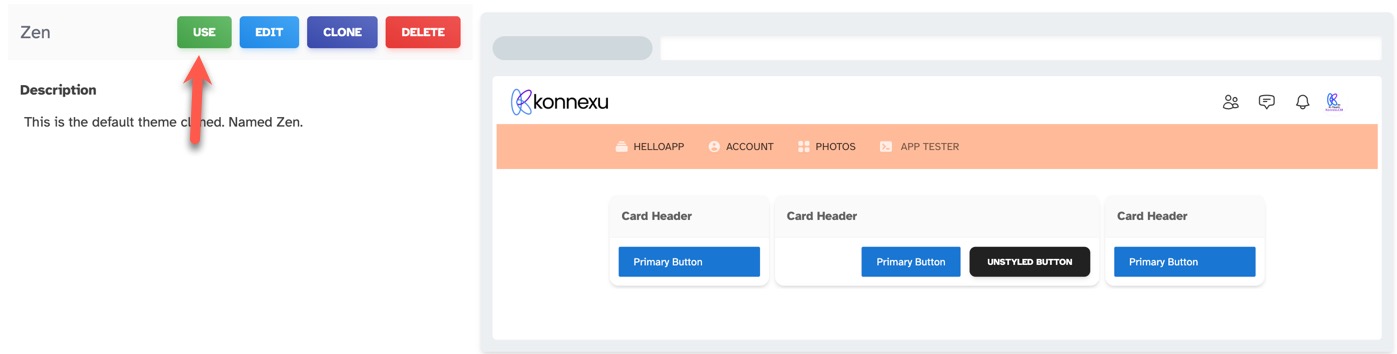
Click the "Use" button for the theme you want to use as the default theme. Please be sure to clear site cache.
Editing a Cloned Theme
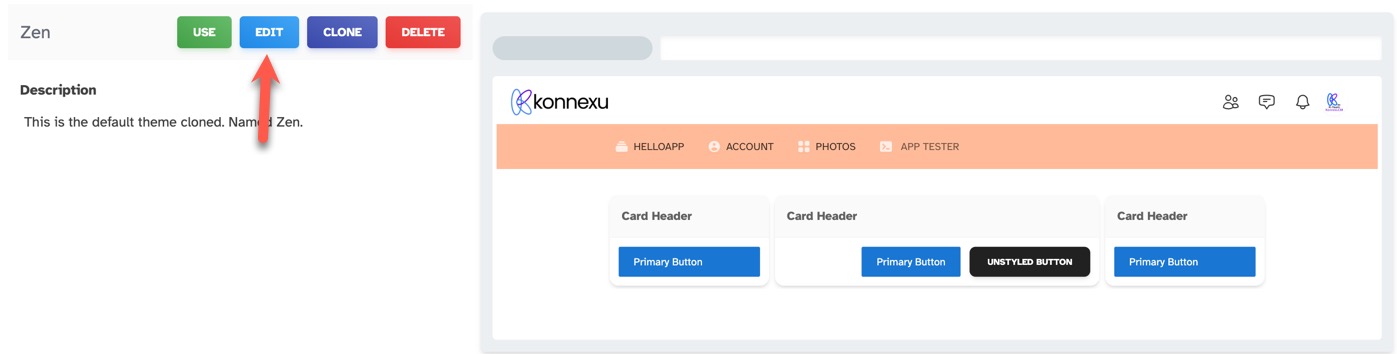
Click the "Edit" button for the cloned theme you want to edit.
Deleting a Cloned Theme
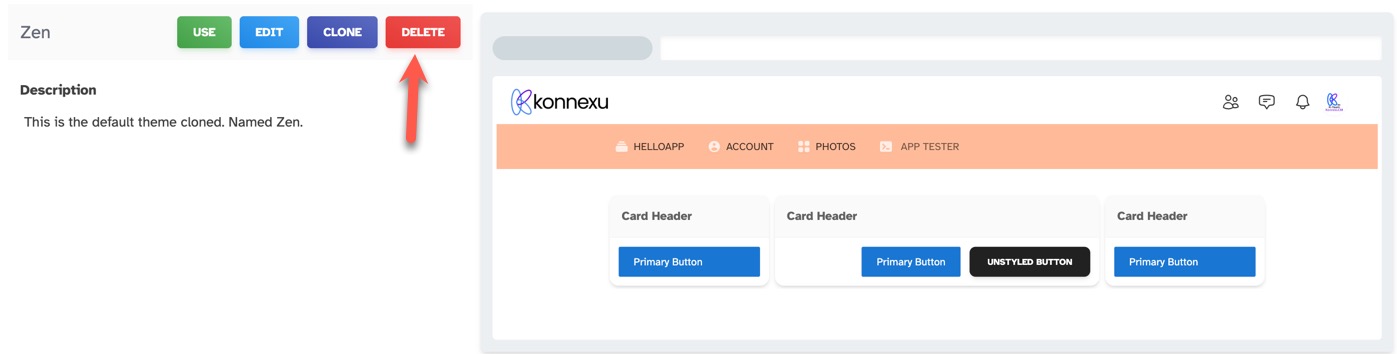
Click the "Delete" button for the cloned theme you want to delete. If you don't see a delete button, this is due to you having the theme set as the
default, active theme. Please choose another theme as the default, active theme. Active themes cannot be deleted.
Using Custom CSS to Style Your Site
You can add CSS to style your site. If you don't know CSS, we will provide tips at our community to help you change some things. Feel free to ask advice there for style help.
To change CSS, when in the editor of your theme, scroll down to the CSS input box. Add CSS to style various things such as our example showing a color change
for the header.
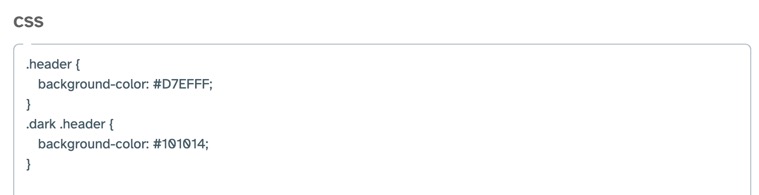
Scroll up to the top and save your theme. Clear site cache. You may also need to clear your browser cache if the changes don't show.
Need help?
If you need any help, drop us a line at our Konnexu Support Portal or ask a question at the Konnexu Community. We're always happy to assist.