Konnexu Site Details
Ready to get your Konnexu site up and running? This guide will help you find your DNS settings, website login details, and other important site information.
If you're using Konnexu DNS Manager, simply point your domain's nameservers to ours. We'll automatically configure the DNS records for your main site. If you're using another DNS provider, you'll need to add the required records yourself.
Starting a Site
You'll need your own domain name to create a Konnexu site. Free domains aren't supported.
If you don't already have a domain, you can purchase one from a registrar such as Porkbun, Namecheap, NameSilo, or Cloudflare. We recommend comparing prices and reviews before choosing.
Using Cloudflare?
Cloudflare Registrar doesn't allow you to change your domain's nameservers. If your domain is registered there, you'll need to manage your DNS records through Cloudflare instead of Konnexu DNS Manager.
Once you've started your subscription, you're ready to configure your domain's DNS settings.
DNS changes can take up to 24–48 hours to take effect, although they often update much sooner. If you're having trouble with DNS changes, your domain registrar or DNS provider can help.
To cancel a site or subscription, see our subscription tutorial.
Finding DNS Records
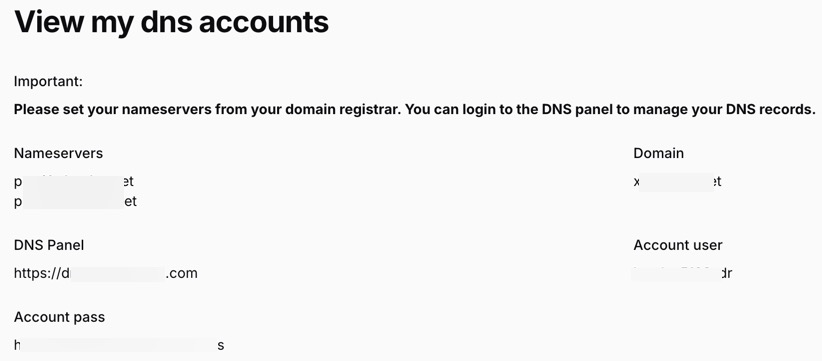
If you're using Konnexu DNS Manager, you'll need to set your domain's nameservers to ours.
- Log in to your Konnexu Client Dashboard.
- Navigate to My Products › DNS.
- Click the site you want to view.
- Under Nameservers, you'll find the two nameservers to enter at your domain registrar.
- This page also provides access to your Konnexu DNS Manager.
Once your nameserver changes have taken effect, your domain will use Konnexu DNS Manager.
Finding Your Website's Login and A Record Details
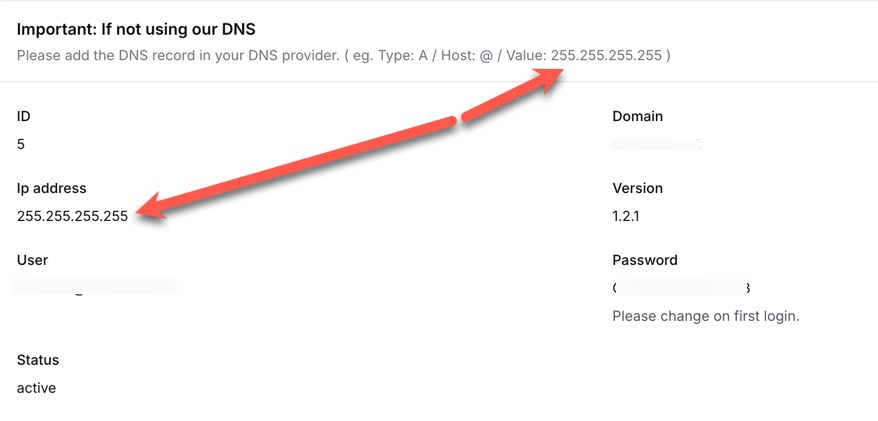
Your site details include your login credentials and the IP address needed to configure DNS records.
- Log in to your Konnexu Client Dashboard.
- Navigate to My Products › Sites.
- Click the site you want to view.
- You'll find your User and Password for logging in to your community. We recommend changing your password immediately after your first login.
- You'll also find your site's IP address, which you'll need if you're manually creating an A record.
When Do You Need an A Record?
If you're using Konnexu DNS Manager, your main site's DNS records are automatically configured. You don't need to create an A record for your main domain.
However, you'll need to manually create an A record if:
- You're using another DNS provider. Add the A record through the provider managing your domain's DNS.
- You're creating an additional Konnexu site on a subdomain. Add an A record for the subdomain, even if you're using Konnexu DNS Manager.
For example, if your main site is example.com and you want another Konnexu site at community.example.com, you'll enter community.example.com when purchasing the additional site.
Adding an A Record
The settings depend on where you manage your DNS.
Using Your Own DNS Provider
If you're not using Konnexu DNS Manager, create an A record for your Konnexu site with your current DNS provider.
| Field | What to Enter |
|---|---|
| Type | A |
| Hostname / Name | @ for your main domain, or the subdomain name if applicable |
| Value / Points To | Your Konnexu site's IP address |
| TTL | Leave at the default setting |
Using Konnexu DNS Manager
Your main domain is configured automatically. You only need to add an A record when setting up an additional Konnexu site on a subdomain.
For example, if your new site is myniftysubdomain.example.com:
| Field | What to Enter |
|---|---|
| Type | A |
| Hostname / Name | myniftysubdomain |
| Value / Points To | Your new Konnexu site's IP address |
| TTL | Leave at the default setting |
Use Your Site's IP Address
Always use the actual IP address shown under IP address in your site's details. The IP address displayed in the dashboard's example is for illustration only.
DNS settings may look different depending on your provider. If you're using an external DNS provider and need assistance, check their documentation or contact their support team.
Need help?
If you need any help, drop us a line at our Konnexu Support Portal or ask a question at the Konnexu Community. We're always happy to assist.