Site Details & Info - Konnexu Community Builder
Take your time and give thought to the settings in this tutorial. They can help you with your SEO, which is important if you need your site to do well with search engines. There are a lot of great tutorials regarding best practices for SEO. We linked one from Google in the General Website Settings page.
The "From" name and "Email" settings are very important in order for Emails from your site, such as password reset and notifications, are delivered and not filtered or blocked as spam.
The redirect setting is also helpful if you want your users to land on a specific page after logging in. For example, if you want a site focused on the forum, you can set the redirect to the forum page and users will be in the forum after logging in.
In order to set the site info settings, you'll need to be logged in to your ACP and navigate to Settings › Site Settings.
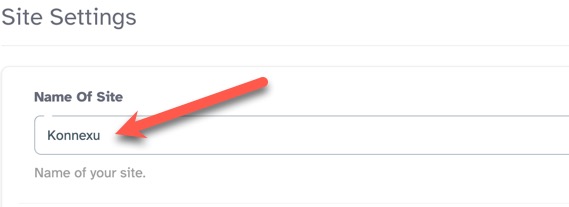
Name of Site
Fill in the "Name of Site" input box with what you want to show as the Site Title. This shows in the browser tab.
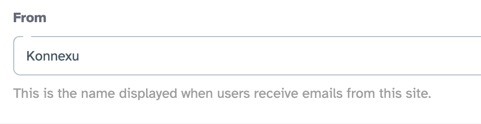
Site Email "From" Name
This is the name displayed when users receive Emails from your site. Fill in the "From" input box with the name you want to show.
Copyright
Fill in the copyright input box with either just the year or to have it auto update, you can fill in the code we show below.
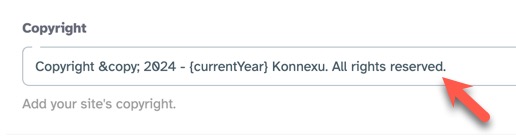
Auto-updating copyright
This example uses Konnexu. Fill in your own company name and the year you want to show as the starting year.
Copyright © 2024 - {currentYear} Konnexu. All rights reserved.
Copyright ©
Change the year but keep the dash and spacing:
2024 -
Keep the next part:
{currentYear}
Change this part:
Konnexu. All rights reserved.
So if our company is Amazing Donuts which has a starting year of 2023, we could put this:
Copyright © 2023 - {currentYear} Amazing Donuts. All rights reserved.
Copyright without auto-update
This example uses Konnexu. Fill in your own company name and the year you want to show.
Copyright © 2025 Konnexu. All rights reserved.
This is the default Email used when your site sends out site transactional Emails (notifications, password resets, friend requests). It will be the "from" Email users will see in their Email. This Email isn't for people to respond to, and shouldn't be an Email that you use for other things. In the past, people used a "noreply" Email address, but we don't recommend that as it can get it flagged as spam. We suggest using a subdomain of your domain or something like "mail.yourdomain.com" or "send.yourdomain.com" where "yourdomain.com" is your actual domain.
You will need to set the TXT records at your domain registrar for the Email you use here. The TXT records are sent in the welcome Email you received when you started your Konnexu site.

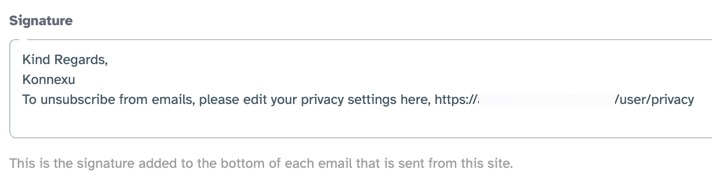
Site Email Signature
This is the signature added to the bottom of each email that is sent from your site. Fill in the "Signature" input box with the signature you want to send. We suggest to include info for unsubscribing in order to comply with various regulations for unsubscribe requirements.
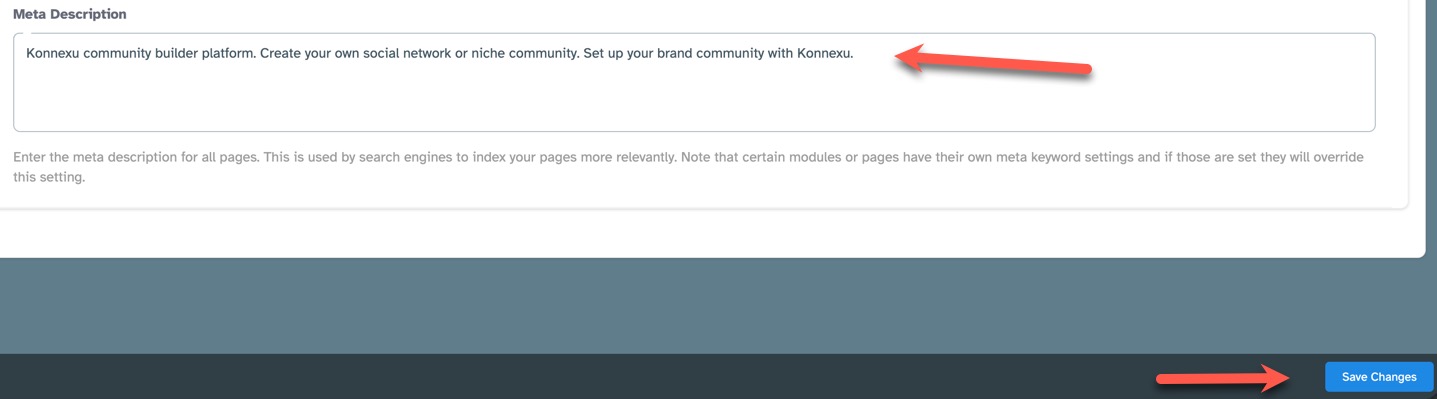
Meta Description
Enter the meta description for all pages. This is used by search engines to index your pages more relevantly. Note that certain modules
or pages have their own meta keyword settings and if those are set they will override this setting.
URL Redirect after login
After a user has logged in, and they have not requested a page to visit, you can set a default redirection URL, which will send them to this specific page right after they log in. If you add an external link be sure to add "https://" (without quotes) otherwise the URL will be treated as an internal link.
Example: If you want to redirect users to the forum after log in, you would put "/forum" or "forum" without quotes like this:

Head Code
You can add code in the Head Code input box for things like Google Analytics and other things that need to be added to the head of your site. This will be added to the '
' section.Footer Code
If you need to add code to the footer, before the ending '<body' tag, you can add that in the Footer Code input box.
User Session Expiry Setting
Define the number of minutes before the user session expires automatically. This is for site security. It's best to have an expiration of the user session to keep user accounts safer from possible hijacking of their account. This will close the user session upon inactivity for the set amount of time.
When done, be sure to save the settings by clicking Save Changes at the bottom of the page.
Need help?
If you need any help, drop us a line at our Konnexu Support Portal or ask a question at the Konnexu Community. We're always happy to assist.