Adding and Managing Users for Your Konnexu Client Account
You can add users to your client account and grant varying degrees of access, even granting log in privileges. The instructions below assume that you are logged in to the Konnexu client dashboard.
Adding Users
There are two ways to add an authorized user.
-
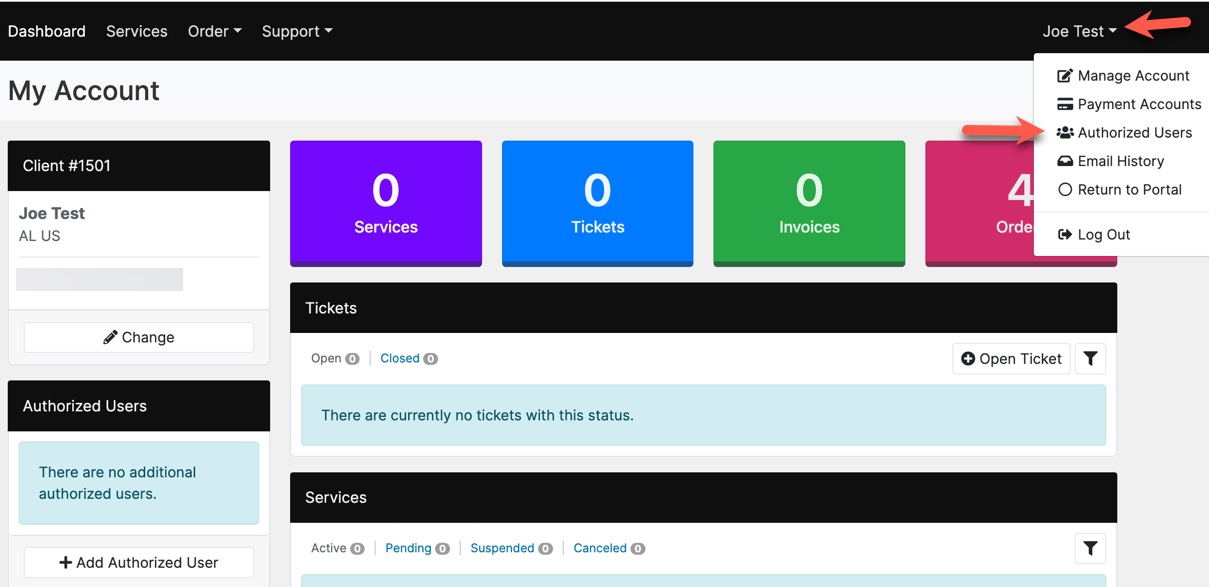
In the left sidebar, click "Add Authorized User" when on the main dashboard page.
-
Or, in the top right user drop-down, click "Authorized Users."

-
In the left sidebar, click "Add Authorized User."

-
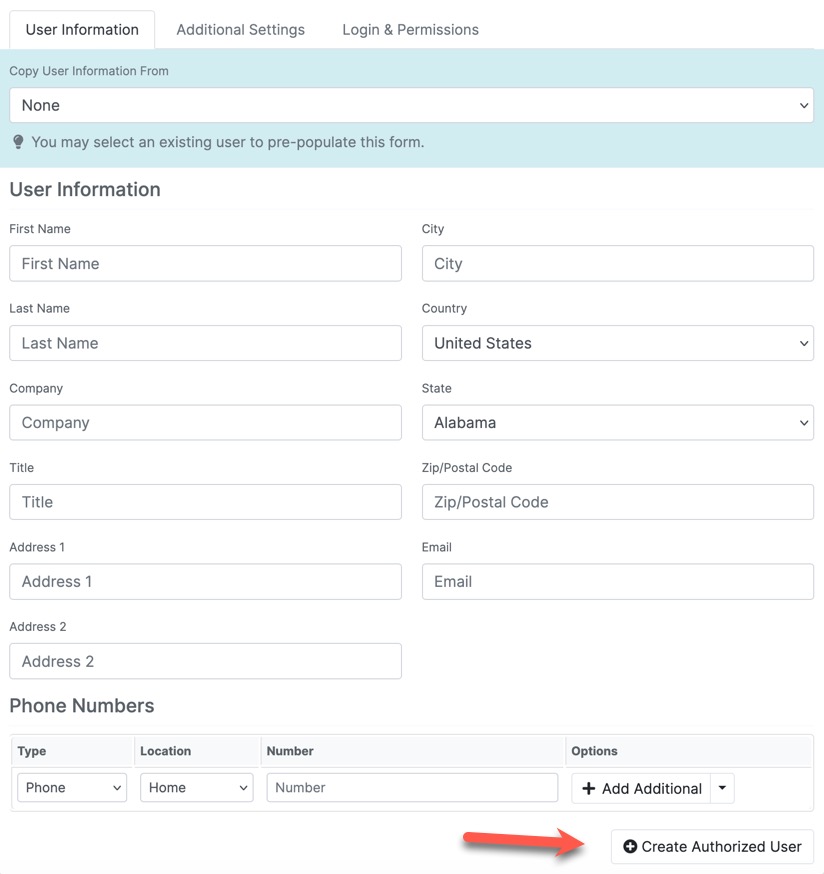
Fill in the details for the authorized user you are adding. Ensure to add their email address. If you click the "Create Authorized User" button, the user will be created and will only have the ability to contact us via emails. If you want to give this user the ability to log in, please follow the steps below.
Editing Authorized Users
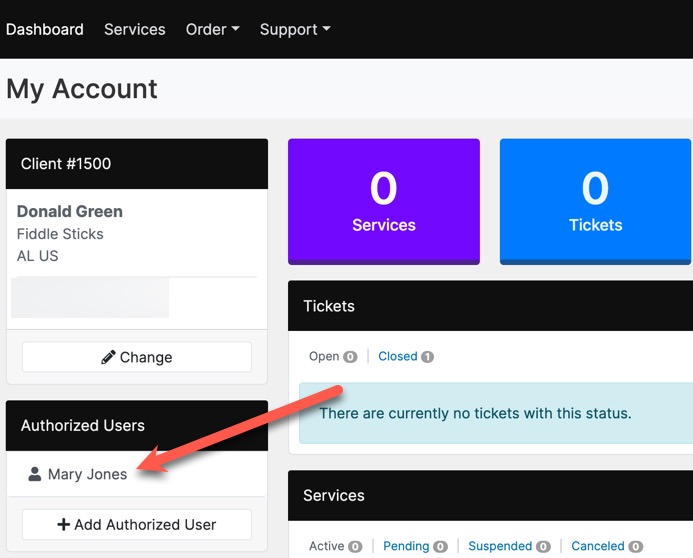
To edit an authorized user, you can either click their name from the Authorized User list on the main dashboard page:
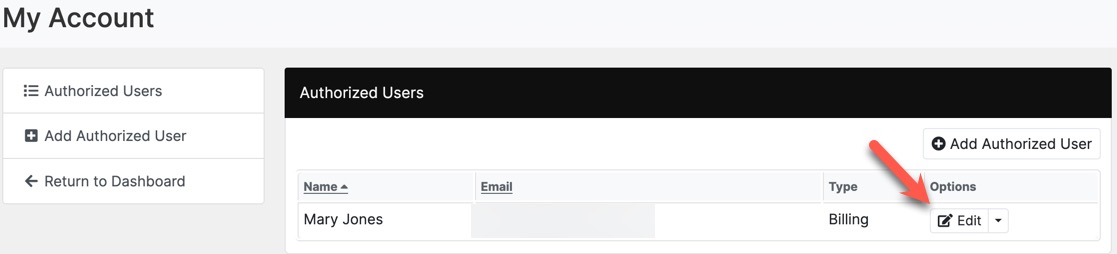
Or, when in the Authorized Users page (found by clicking the top right user drop-down and selecting "Authorized Users"), click "Edit" to the
far right of the user you want to edit.
Granting Log In Privileges to Users
You can either grant privileges during the create user process, or edit the user and grant access. Either way, the process is as follows:
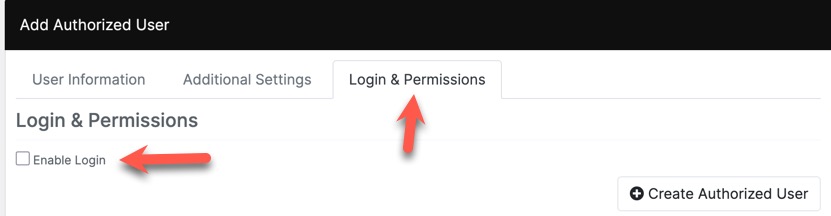
- Click the "Login & Permissions" tab and check the box for "Enable Login."
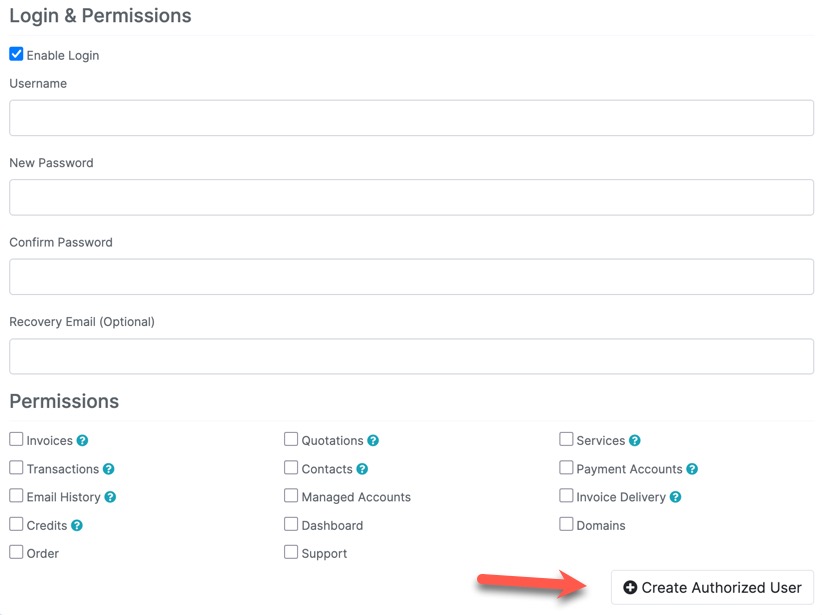
- Fill in a username, password, and if you want a recovery email for this user, fill that in too. You'll want to send these log in details to the user.
- Check each box for access permissions for this user. Once done, click "Create Authorized User."
Setting an Authorized User's Category
This is optional and doesn't have any specific function other than helping you and our staff know what access category the user is in. Mainly, if you'll have a lot of authorized users, you may want to choose categories for classification purposes so you remember what access was granted. If we don't have a category you need, please contact our support, and we'll gladly add it.
This can be done either from the add user page or when editing a user.
Click the "Additional Settings" tab and choose the category from the drop-down selection.

Removing Users
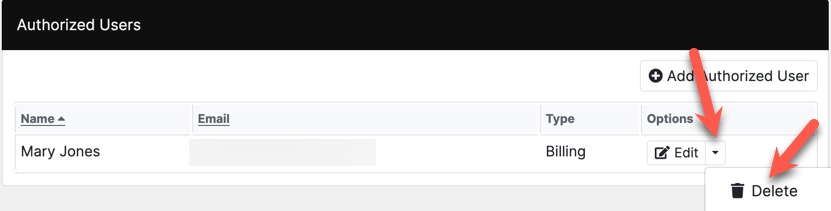
To remove a user, when in the Authorized Users page (found by clicking the top right user drop-down and selecting "Authorized Users"),
click "Delete" to the far right of the user you want to remove.
Need help?
If you need any help, drop us a line at our Konnexu Support Portal. We're always happy to assist.