Task Manager
The Task Manager handles backend operations such as sending site e-mailed notifications.
In order to manage tasks, you'll need to be logged in to your ACP.
Navigate to Management > Task Manager. You'll see a list of the tasks to the right.
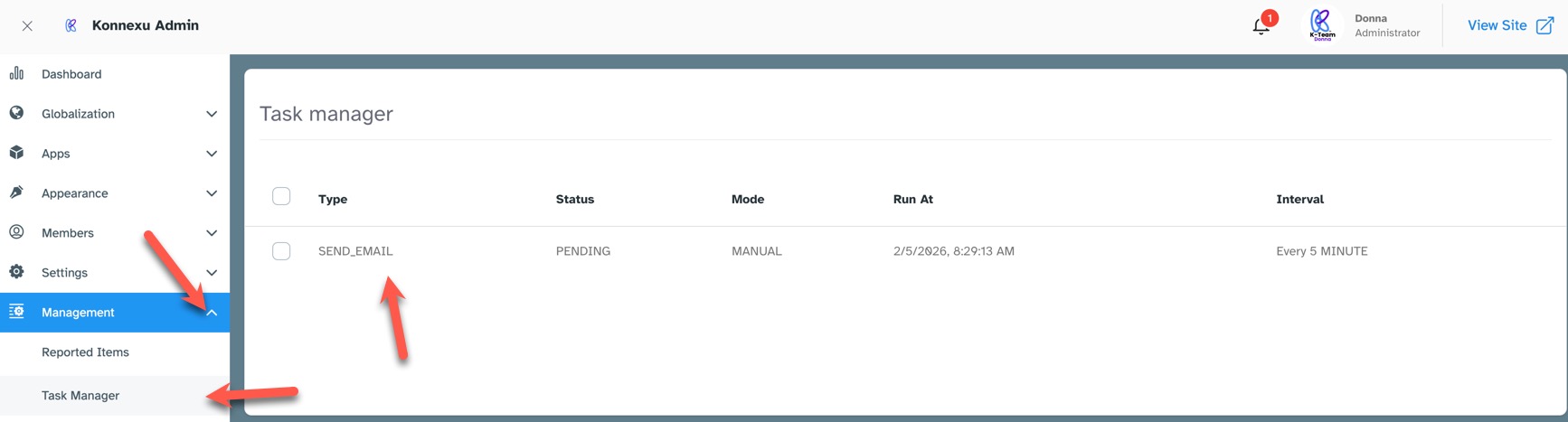
The columns for the tasks are:
- Type - This shows the type of task being run. Our screenshot only shows one task, "send_mail" which shows it'll be sending out an e-mail. Other tasks will show in the list as we release later versions.
- Status - This shows the status of the task. Our screenshot shows the task is "Pending" (waiting) to be run.
- Mode - At the moment, this only shows "Manual," but in the future we will have more automated tasks as well. Manual tasks need to be run by you, so you'll want to remember to do this each day.
- Run At - This will show when the task is set to run.
- Interval - This shows the interval the task will run when it is automated. Our screenshot shows that "send_mail" tasks are set to run every 5 minutes.
Running Tasks
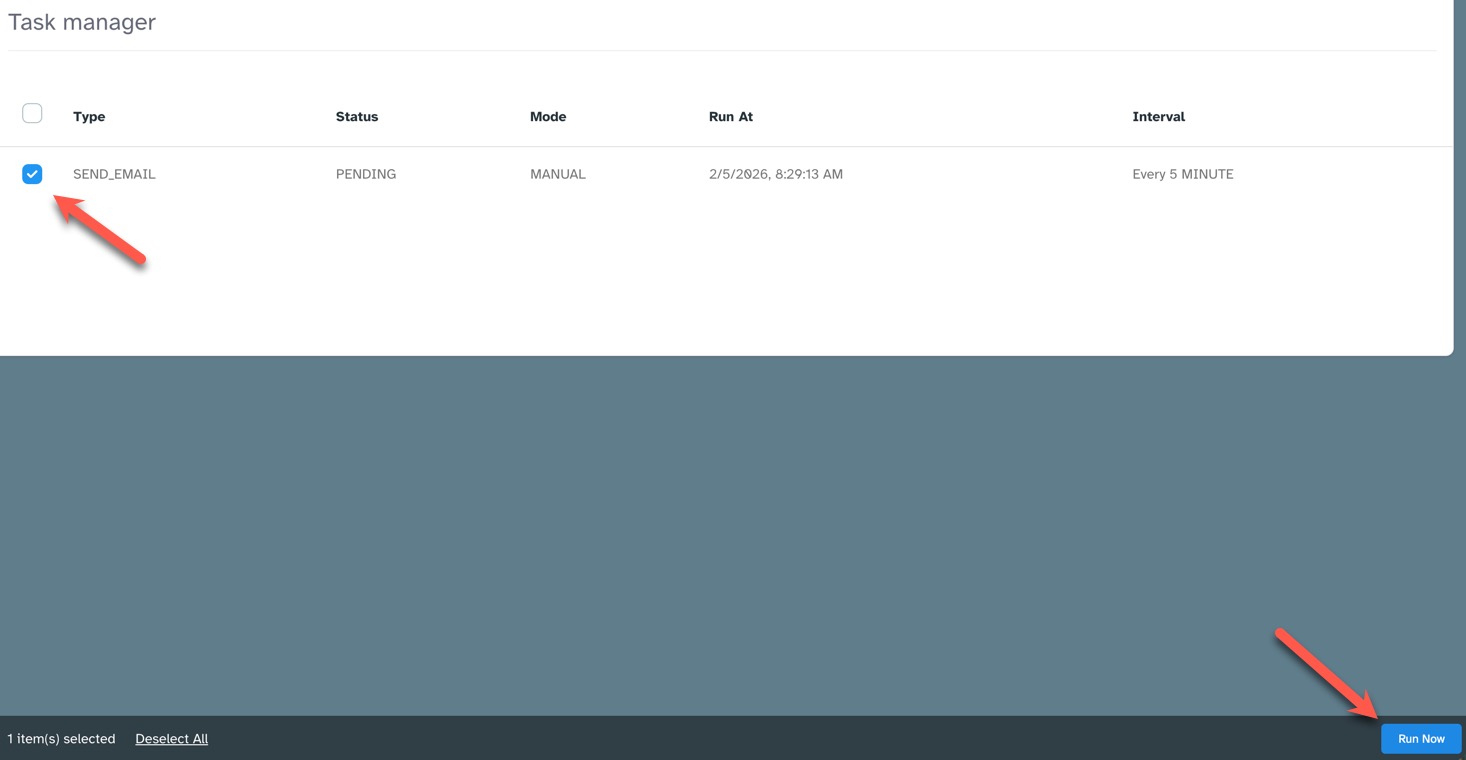
To run one, or more, tasks, click the checkbox to the left of each task you want to run. If you want to run all tasks, click the toggle at the top of the left column to select all tasks. Click the "Run Now" button on the bottom right.
Need help?
If you need any help, drop us a line at our Konnexu Support Portal. We're always happy to assist.