Menus & Navigation
Setting up the navigation for your community is important as your members need to be able to identify where they can go for features they want. Your menus should reflect your community niche. We've made it easy for you to change menu names, add, remove, and even have icons for your navigation.
In order to manage menus, you'll need to be logged in to your ACP.
Adding Menus
-
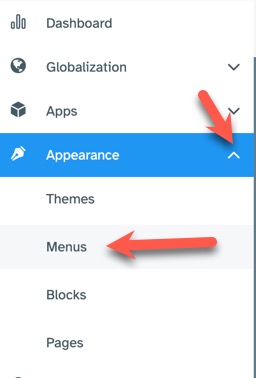
To add a menu, navigate to Appearance >> Menus
-
Click "Add Menu Item" to the right of the location you want to add your menu. At this time, there are two choices, Main and Footer.

- A menu item will be created at the bottom of the current menu list.

- Change the menu name by clicking in the input box and changing the text.

- Add a URL for your menu. For in-site menus, you don't need the full URL and can put /blog for example if you were making a menu to your site's
blogs. For this tutorial, we will add an external menu to our community as an example.

-
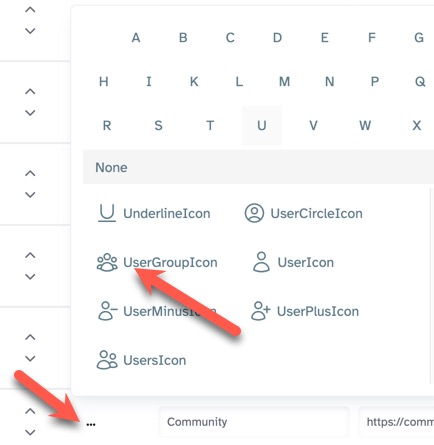
(Optional) You can add an icon for your menu by clicking the ellipses to the left of the menu name and choosing an icon from the list.
Info
Icons only work in specific locations/menu types.
-
Once done with your menu, at the top of the menu list, click "Save Changes" to save your menu.

Editing Menus
To edit a menu, follow the instructions above for entering the name, URL, or changing the icon. Once done, click the "Save Changes" button.
Deleting Menus
To delete a menu, click the trashcan icon to the far right of the menu you want to delete and click the "Save Changes" button.

Reverting Menus
If you make a mistake, you can usually rectify that by clicking the "Revert" button before you save your changes. If you have already saved your
changes, you cannot revert.

Arranging Menus
To arrange the menus, click the up/down arrows to the left of the menu you want to move up or down. Save changes when done.

Enabling or Disabling Menus
Toggle(click) the switch to the far right of the menu you want to enable(colored) or disable(greyed out).

Need help?
If you need any help, drop us a line at our Konnexu Support Portal or ask a question at the Konnexu Community. We're always happy to assist.