Logo & Favicon
You can choose to keep your Logo as text, or upload your logo image. The favicon is the small icon that shows in the browser bar. It's best to keep the favicon a simple image with high contrast as it'll show better in the browser as it's a very small icon. If your logo contains text, perhaps create a favicon of a two letter abbreviation of your site name, or just the first letter.
Info
You can find tutorials for accessing and editing themes on the Design & Navigation page.
For the below tutorials edit the theme where you want to add your logo and favicon.
Adding a Logo
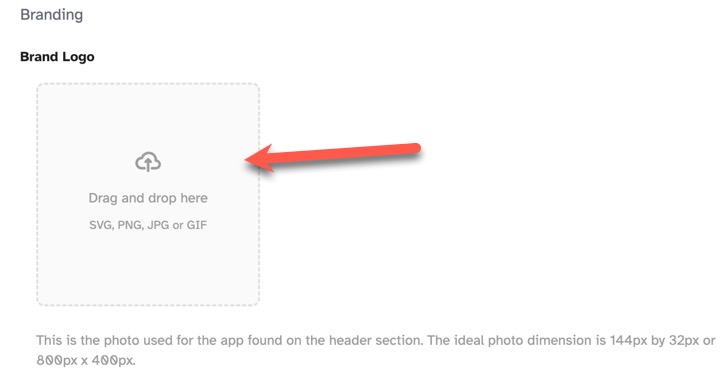
When in the edit screen, scroll down to "Brand Logo" and drag and drop a logo image, we use SVG images, but you can use any of the accepted
formats (SVG, PNG, JPG, GIF). The recommended sizes are either 144 x 32 or 800 x 400. Note that you can also click to upload an image instead of
using the drag and drop method.
Removing a Logo
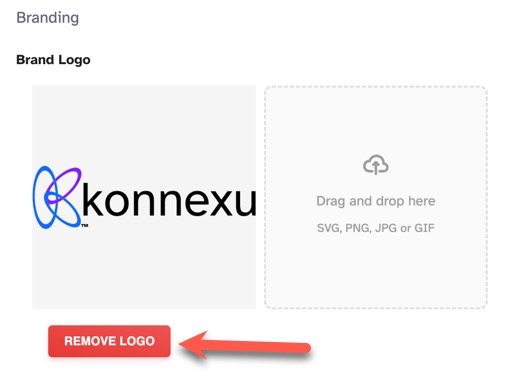
To remove a logo, click the "Remove Logo" button. You can then either upload a new logo, or not use a logo and just use the text site name.
Adding a Favicon
When in the edit screen, scroll down to "Favicon" and drag and drop a favicon image, we use SVG images, but you can use any of the accepted
formats (SVG, PNG, JPG, GIF).
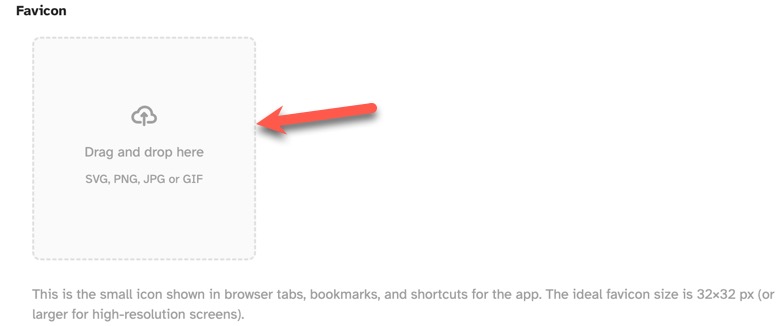 The ideal size is 32×32 px (or larger for high-resolution screens). However, if you want your favicon in Google
search, you'll need to
follow their guidelines.
The ideal size is 32×32 px (or larger for high-resolution screens). However, if you want your favicon in Google
search, you'll need to
follow their guidelines.
Removing a Favicon
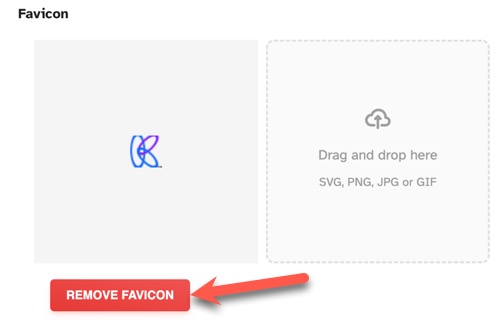
To remove a favicon, click the "Remove Favicon" button. You can then either upload a new favicon, or not use one.
Need help?
If you need any help, drop us a line at our Konnexu Support Portal or ask a question at the Konnexu Community. We're always happy to assist.