Phrase Manager
The phrase manager allows you to set phrases on the community how you want them. You can change default phrases, or add your own phrases. This allows you to have a multilingual community with phrases to best match your niche or community focus.
In order to manage the below settings, you'll need to be logged in to your ACP.
Once logged in to the ACP, navigate to Globalization > Phrases.
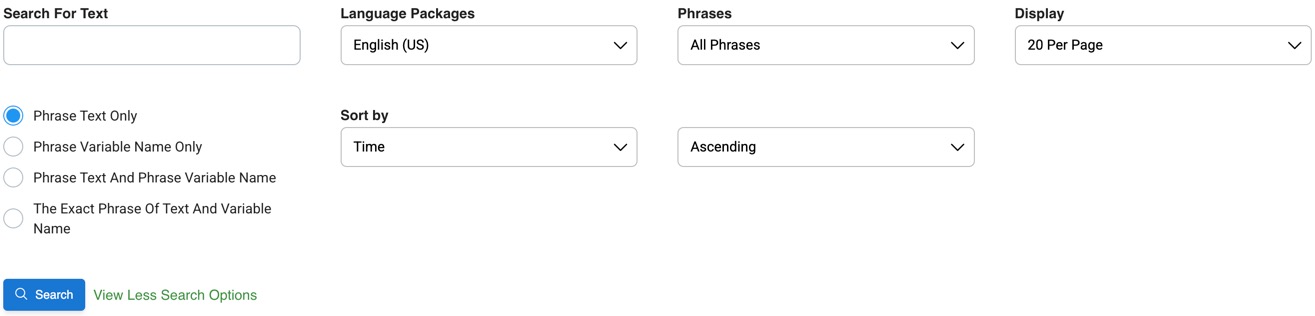
The phrase manager has a search feature that allows you to view phrases by language pack, or to search for specific phrases. This can make it
faster for you to translate your phrases for each language pack.
Adding Phrases
- To the far right, click the New Phrase button.

- You can choose "Quick" or "Detail" to add the phrase. Quick lets you just add a simple phrase which will generate for each language in English.
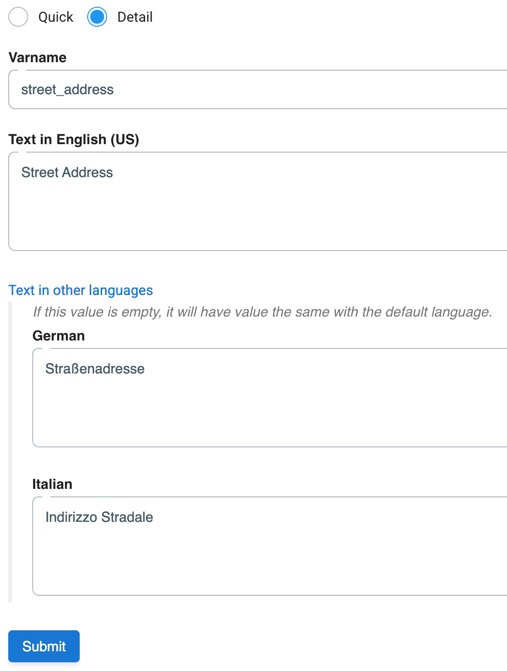
- Detail lets you specify the phrase variable, text, and the text in other languages if you have other language packs installed. We will go over each option now.
-
Quick
-
Fill in the phrase and click the "Submit" button.

-
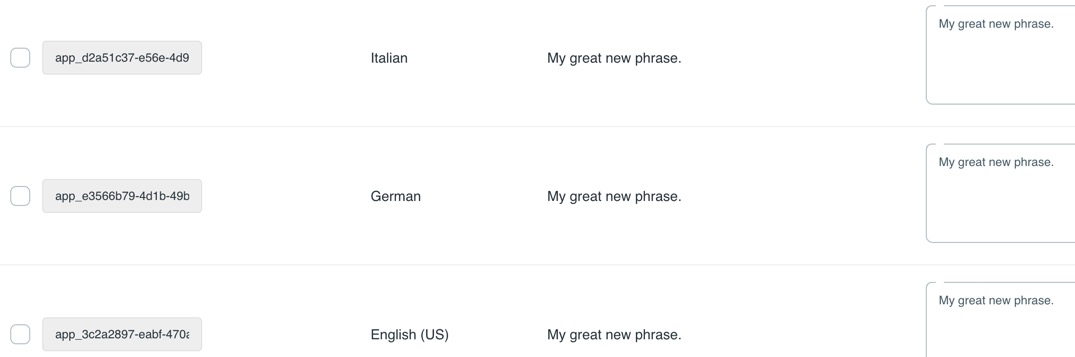
Once added, each active pack will have that phrase. You can then translate each one as needed.
-
-
Detail
- Fill in the Varname, using an underscore between words. Ex: street_address
- Text in English is required. Fill in each other language translation if you have other packs (optional). If you do have other packs and don't fill in the text, it will fill in with the English phrase.
- Once done, click the "Submit" button to generate this phrase.
-
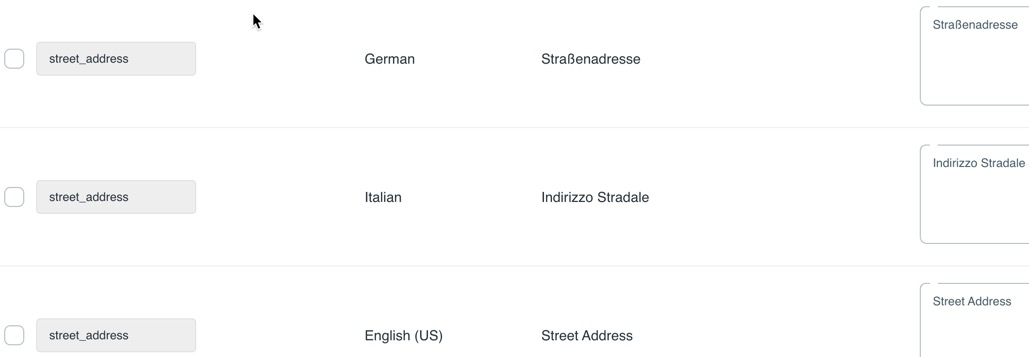
The phrases are all added with the translations if you chose to do those. It does make it easier to put the translations during creation.
Editing Phrases
- Use the search to find the phrase you want to change. You can search by specific language pack, or have it search all packs.
-
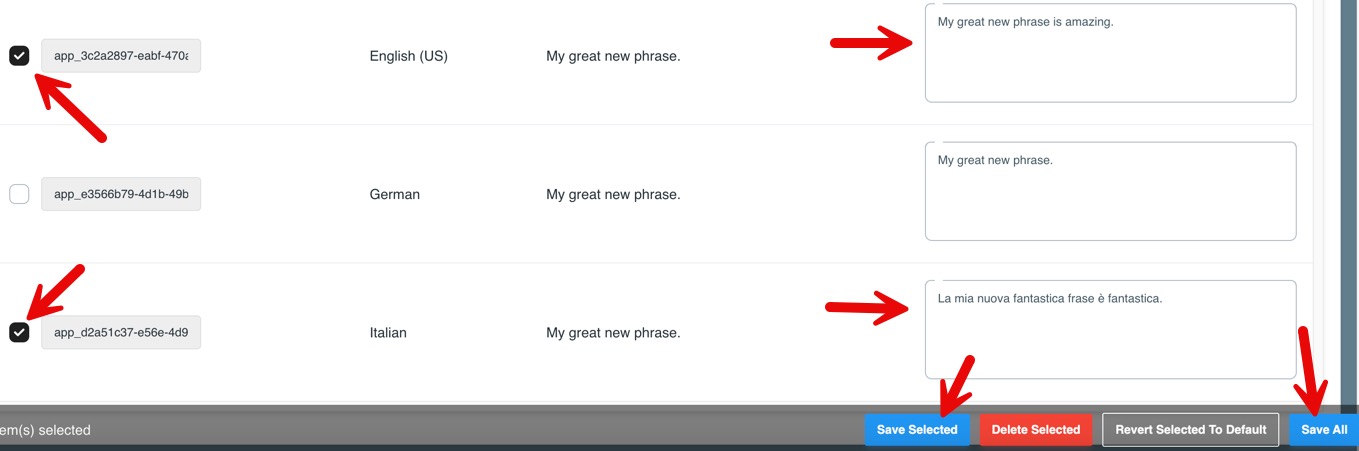
Once you find the phrase, edit the far right text box.

-
Once done, click the "Save All" or "Save Selected" button. You can click to the left of each phrase you want to save if you only want specific phrases saved.
Reverting Phrases
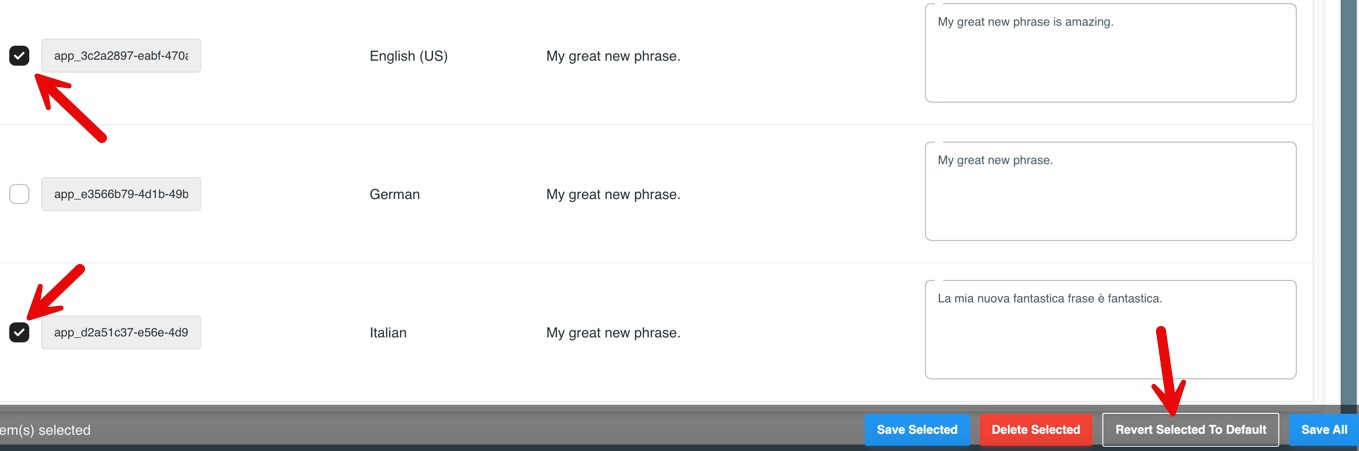
If you need to revert phrases back to default, select the phrase(s) you want to change back, and click the "Revert Selected to Default" button.
Deleting Phrases
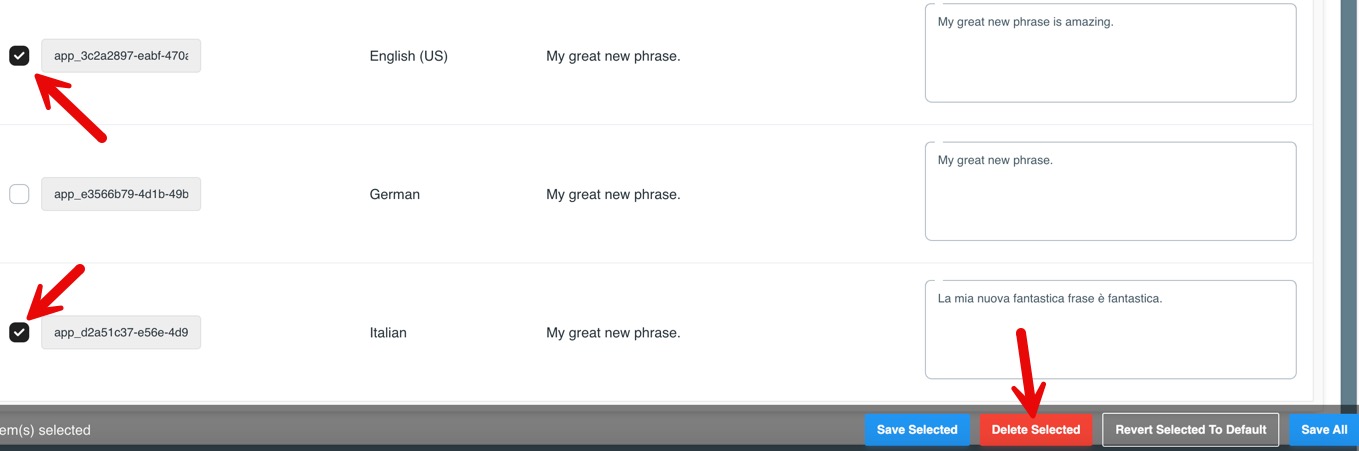
To delete phrases, select the phrase(s) you want to delete, and click the "Delete Selected" button.
Using Phrases
There are variables for each phrase that can be used in various places such as menus, pages, etc. Here's how to find and use the variables.
-
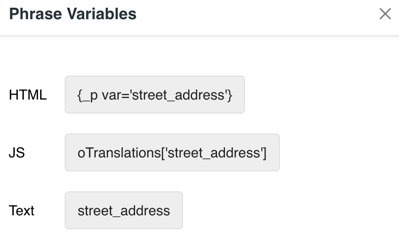
For the phrase you want to use, click the Variable name. Note that the variable is the same for each language pack so you can get the variable for any pack.

-
You'll see a popup with the phrase variables for HTML, JS, and Text.
Need help?
If you need any help, drop us a line at our Konnexu Support Portal. We're always happy to assist.