Language Manager
The language manager system allows you to set the default language of the site. You can add and remove languages, edit phrases, and disable languages. When adding a language, you'll need the translations for that language. Your members can choose from languages you've added and activated.
In order to manage the below settings, you'll need to be logged in to your ACP.
Once logged in to the ACP, navigate to Globalization > Languages.
Adding a Language
-
On the far right, click the drop-down "Actions" menu and select "New Language."

-
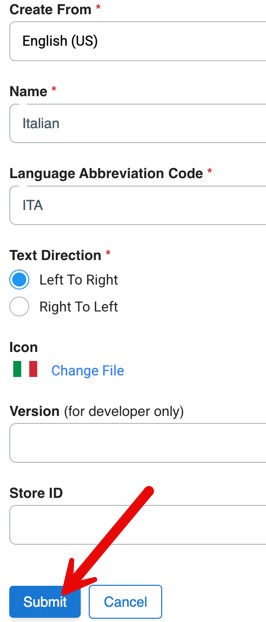
Fill in the following details:
- Create From: this is the language pack you want to duplicate. We recommend choosing the English pack.
- Name: this is the name of your language pack.
- Language Abbreviation Code: this is the ISO Country Code. Use either the two or three-digit code.
- Text Direction: choose Left to Right(LTR) or Right to Left(RTL) based on the language you are adding.
- Icon (optional): you can choose an icon to show for this language.
-
Click the Submit button, and it will import the phrases from the pack you chose. You can now work on your new language pack to translate.
Editing Language Settings
To edit language settings, click the gear to the far right, and choose "Edit Settings."

Setting a Language as Default
You can set one language pack as the default pack. This will be the pack that your entire community uses, unless they choose another pack that
you have active. To set a pack as default, click the toggle under the Default column to activate. When active, the toggle will be to the right, and
it will be blue in color. Inactive toggles show the button to the left and are greyed out.

Setting a Language as Active, or Inactive
To set a pack as active or inactive, click the toggle under the Active column. When active, the toggle will be to the right, and
it will be blue in color. Inactive toggles show the button to the left and are greyed out.

Managing Phrases
There are two ways to manage phrases for your language pack(s). You can do it via the Phrase Manager, or click the gear to the far
right, and choose "Manage Phrases." This will bring you to the Phrase Manager, with all the phrases for your language pack showing. More details on
phrases are in the linked tutorial for the Phrase Manager.

Need help?
If you need any help, drop us a line at our Konnexu Support Portal. We're always happy to assist.