Forum App - Konnexu Community Builder
Info
You can find tutorials for accessing app settings and managing categories on the App Extensions page.
Forum Settings
To manage forum settings, click the "Settings" tab. You'll see the following settings:
Forum Time Stamp
Sets the date and time format that shows for posts and threads. Default is MMM d, h:mm a . There are allowed formats which we will list after
the explanation of the formats.
Explanation of the format:
| Timestamp | Description |
|---|---|
| MMM | Abbreviated month (e.g., Jan, Feb, Mar, etc.) |
| d | Day of the month (e.g., 1, 2, 3, etc.) |
| h | Hour in 12-hour format (e.g., 1, 2, ..., 12) |
| mm | Minutes (e.g., 00, 01, 02, ..., 59) |
| a | AM or PM designation |
| EEEE | Represents the full name of the day of the week (e.g., "Monday", "Tuesday"). |
| hh | Represents the hour in a 12-hour format, ranging from 01 to 12. |
| HH | Represents the hour, ranging from 00 to 23 in a 24-hour format. |
| ss | Represents seconds, ranging from 00 to 59. |
| 'T' | A literal character 'T' that acts as a separator between the date and time components. |
The following are valid formats. To the left is the correct timestamp and to the right is an example of how it will look.
| Timestamp | Description |
|---|---|
| MMM d, h:mm a | Jul 28, 10:30 am |
| MMMM d, yyyy | July 28, 2025 |
| yyyy-MM-dd | 2025-07-28 |
| yyyy/MM/dd | 2025/07/28 |
| dd-MM-yyyy | 28-07-2025 |
| dd/MM/yyyy | 28/07/2025 |
| MM/dd/yyyy | 07/28/2025 |
| EEE, MMM d | Mon, Jul 28 |
| EEEE, MMMM d, yyyy | Monday, July 28, 2025 |
| h:mm a | 1:05 PM |
hh:mm:ss a |
02:23:45 PM |
HH:mm:ss |
14:30:15 |
yyyy-MM-dd'T'HH:mm:ss |
2025-07-28T12:46:00 |
yyyy-MM-dd HH:mm:ss |
2025-07-28 15:45:00 |
Number of posts to show per thread.
This controls how many posts are displayed per page in the thread.
Pagination Style
This sets how the forum is set up to view more threads or posts.
- Scroll down to load more items
- Use Next and Previous buttons
- Use Pagination with page number
Allow posting on Main Feed
This setting determines whether posts and threads will show in the main activity feed.
Category is required
When enabled, users will have to select a category or subcategory when posting threads in the forum. This does respect the user group permissions per category. If disabled, users will be able to create threads without selecting a category. This gives admin the ability to create a more simple forum without categories.
Enable post count
This shows the number of threads and posts in the forum categories.
User Group Settings
Important!
Any user group settings that say "all" such as "Can edit all..." are meant for admin, staff, moderators as this allows the user to edit/delete, etc. items submitted by any members.
To manage user group settings, click the User Group Settings tab.
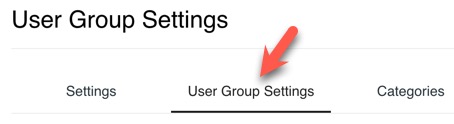
You'll see a drop-down menu to select each user group and the settings for them. Note that not all user groups can use all settings. For example, user groups that can't log in cannot comment or do any actions that require log in. As most of the settings are self-explanatory, we will go over some that may need more explanation. However, should you need more help, please feel free to contact us.
Maximum number of threads
Set this to how many threads you want this member level able to create. Set this to 0, or leave it empty, to allow unlimited threads.
Can add a new public forum?
Notice: This setting is only intended for members who have permission to go into the AdminCP.
This allows an admin user the ability to create forum categories.
Can edit a public forum?
Notice: This setting is only intended for members who have permission to go into the AdminCP.
This allows an admin user the ability to edit forum categories.
Can delete a public forum?
Notice: This setting is only intended for members who have permission to go into the AdminCP.
This allows an admin user the ability to delete forum categories.
Define how many minutes this user group should wait before they can post a new thread.
This setting is for flood control. It can help limit damage from spambots should one join your site.
Define how many minutes this user group should wait before they can post a new reply to a thread.
In addition to the above setting for threads, this setting can also help limit spam posts. We suggest using both settings with the default user group to help control posts from new members.
Can add forum signature
Enabling this allows the user to add a signature. Once enabled, other setting are available.
- Allow HTML links - If you trust members in this user group, you can allow HTML links. We suggest only doing this for those you know and trust as it can be a tool for spammers.
- Character limit - We suggest setting a character limit so your signatures don't get too big and disrupt your forum.
- Can edit all forum signatures - Intended for admin, staff or trusted member levels that you want to be able to edit anyone's forum signature.
Forum Moderation
The following tools are found front end, rather than in the ACP.
There are various tools for moderating forums, controlled by member level settings. Those with access to these settings will see them in the drop-down menus appearing when the gear to the right of the forum is clicked. The gear shows on the "All Threads," "My Threads," and "Subscribed Threads" tabs in the forum main page.
Edit or Delete Thread
Click "Edit" or "Delete" to edit or delete the desired thread. If choosing to edit the thread, you will be brought to the full screen edit page and can edit anything your member level has permission to edit.
Deleting a thread is self-explanatory. When you choose to delete a thread, you'll see a popup that confirms whether to delete the thread. If you decide not to delete it, you can click to cancel.
Move Thread
If you need to move a thread to another category, click "Move" and choose the category you want to move it to.
This is handy if you want to move a thread into an "Archive" area, out of public view and only viewable by admin/moderators/staff. We recommend this method rather than deleting threads as it preserves the database integrity and also preserves threads in case you need to refer them later, or for legal reasons. This is the method we use for our own community. We make our archive threads by year.
Copy Threads
To copy a thread, choose "Copy" and then select the category to copy the thread into. We use this to manage threads that may be spiraling, have unwanted content, and to better moderate our community. This allows you to copy the original thread into an Archive area and then remove unwanted content from the original thread, while maintaining the original content in the copied thread. You can also use it to copy tutorial threads that you may need some of the same content for, and then change the rest of the content.
Merge Threads
Select "Merge" from the drop-down. Copy the URL of the thread you want to merge into the current thread and paste it in the URL box of the merge popup.
This is helpful if someone creates a duplicate thread, and you don't want to get SEO problems for duplicate posts. It also can help keep the forum less chaotic with multiple thread of the exact same content and multiple answers in each thread.
Stick or Unstick Thread
Select "Stick" to keep important threads at the top of the forum section. Select "Unstick" to remove the stuck thread from the top of the forum section.
Open or Close Thread
Choose "Close" to close a thread that you do not want anyone to be allowed to post in. If you want to re-open the thread, choose "Open" and the thread can again be posted in.
Need help?
If you need any help, drop us a line at our Konnexu Support Portal or ask a question at the Konnexu Community. We're always happy to assist.