App Extensions - Konnexu Community Builder
App extensions for Konnexu provide more features for your community. From friends, notifications, blog, forum, photo and more, you'll be able to pick and choose what you enable or add to your site.
Detailed tutorials are provided in this section for how to set up and use these awesome apps.
If you're not sure how to install, remove or manage your app subscriptions, please view our detailed guide, Managing Konnexu Apps, in the Konnexu Client Account section.
Activating or De-activating Apps
In order to manage apps, you'll need to be logged in to your ACP.
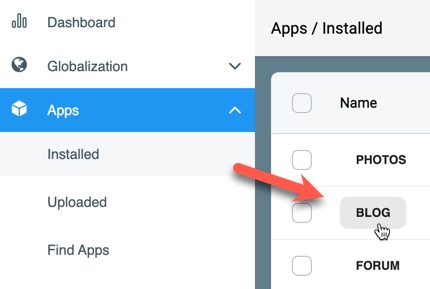
Once logged in to the ACP, navigate to Apps > Installed, and you'll see a list of installed apps with a toggle to activate/deactivate the app.

Managing Settings
In the Installed App screen, click the app you want to manage, such as Blog, and you'll open the page to manage settings, user group settings, and categories. By default, you'll be on the category manager.
Managing Categories
We suggest to make categories relevant to your niche or business. This helps your members, and it can also help your search engine ranking.
Creating Categories or Subcategories
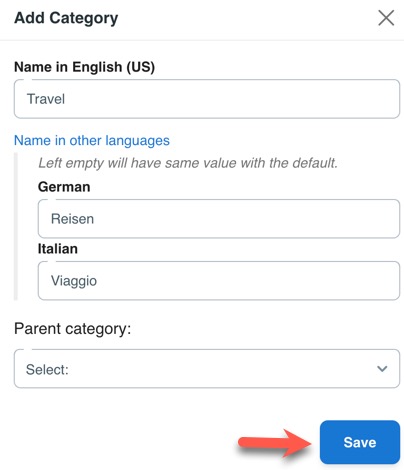
- Click "New Category" at the right of the category list.

- Enter a Name for this category/subcatgory.
- If you have other language packs installed, click "Name in other languages" and fill in the translations.
- Select a Parent Category if this is a subcategory.
- Click "Save" to save it or click the X on the top right if you don't want to make a category.
Editing Categories or Subcategories
To edit a Category or Subcategory, when in the Manage Categories page, click the name of the category you want to edit and select "Edit."
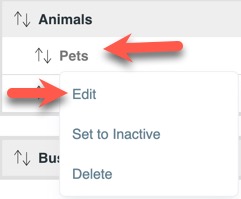
You can then change the name and/or Parent category.
De-activating or Activating Categories or Subcategories
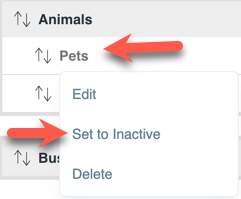
To de-activate/activate a Category or Subcategory, when in the Manage Categories page, click name of the category you want to de-activate/activate and select "Set to Inactive" or "Set to Active." Any content in the category/subcategory will also be hidden.
Deleting Categories or Subcategories
To delete a Category or Subcategory, when in the Manage Categories page, click name of the category you want to delete and select "Delete." Before deleting, you'll want to move any content to other categories.
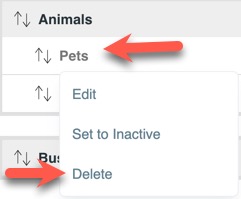
Click "Confirm" to delete the category or "Cancel" if you don't want to delete the category.
Arranging Categories or Subcategories
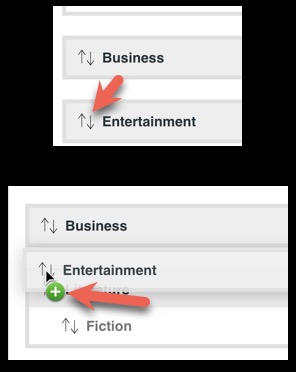
To the left of each category/subcategory, you'll see an up/down arrow. This can be dragged up or down to arrange the categories/subcategories how you want them. When you get the category/subcategory to the location you want, there will be a + sign that shows when you can drop it into place.
Setting User Group Permissions for Categories and Subcategories
By default, categories are created with all user groups having access to view if they have access to view the app. If you need to have some categories set with special user group access, here's how to do that. Note that when you change a category or subcategory to have special permissions for one or more user groups, the other user groups won't have any access.
- In the category tab, click the category that you want to have special user group permissions and select "Manage Permissions."
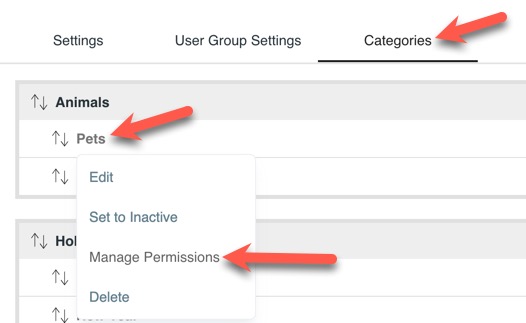
- Choose a user group.
- Set the toggles for which permissions this user group is allowed and click "Save Changes."
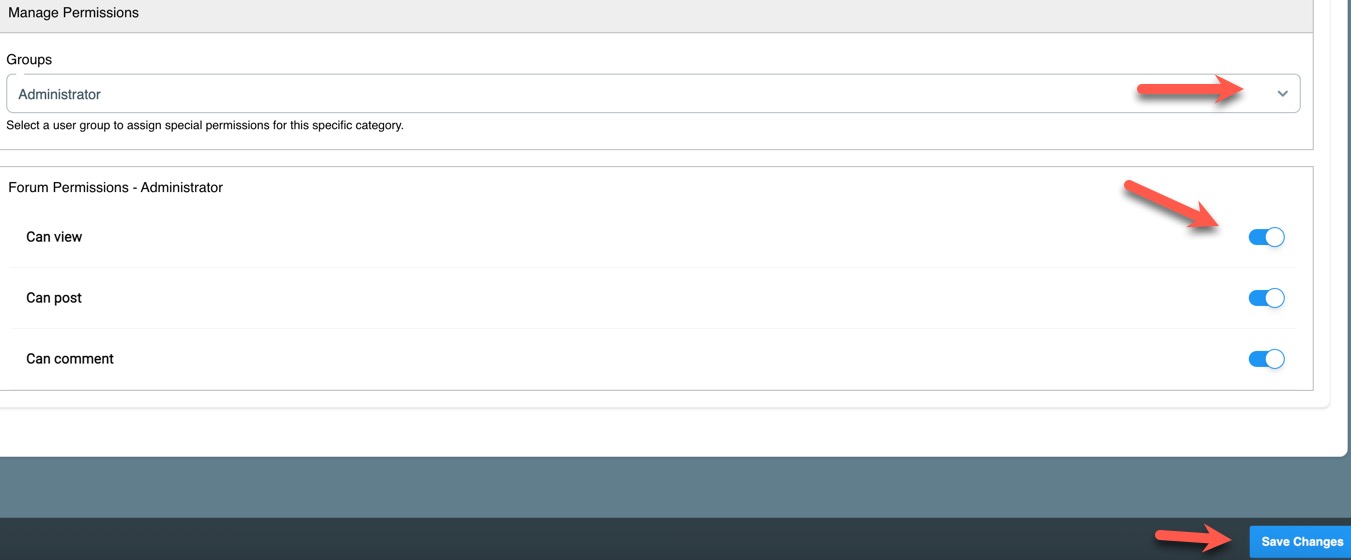
- Repeat for any other user groups you want to allow access.
Need help?
If you need any help, drop us a line at our Konnexu Support Portal or ask a question at the Konnexu Community. We're always happy to assist.