User Groups
In order to manage the below settings, you'll need to be logged in to your ACP.
Managing User Groups
Navigate to Members >> Manage User Groups to add, edit and delete user groups.
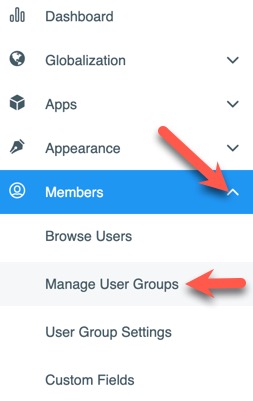
Once in this section, you'll see a list of the current user groups which are divided into two sections, Default User Groups and Custom User Groups.
Default User Groups
These are the required user groups for proper site operations. These user groups cannot be deleted. They include:
- Administrator - your admin user(s) that have access to AdminCP.
- Registered User - members of your site that can log in and use features per settings.
- Guest - users who are not logged in and are able to view areas of your site per settings.
- Staff - usually this user group has more permissions than standard members and is able to edit/ban/remove other members, content, etc.
Custom User Groups
These user groups are the ones you create and can be deleted. The Banned member level is also found here and is for members who have broken your site rules, or perhaps even spammers, and are not allowed to log in. You can delete the Banned user group if you don't want it.
Adding User Groups
- Click "Create User Group" at the top right.

- Fill in the User Group Name.
- Click Save to save this user group or Cancel if you changed your mind.
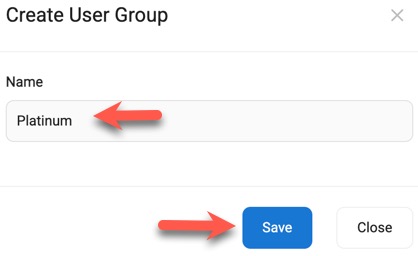
- Once you click Save, the user group will be saved, and you can either create another user group, or close the popup.
After creating your user group(s), to set the various user group settings, please follow the tutorial for User Group Settings. You can also easily get to the user group settings by clicking the gear to the far right of the user group and selecting "App Settings."
Note that you can also add a user group from the User Group Settings page which allows you to inherit settings from another user group if you want to do that instead.
Editing User Groups
To edit a user group, click the gear to the far right of the user group you want to edit and select "Edit."

Deleting User Groups
To delete a user group, click the gear to the far right of the user group you want to delete and select "Delete." You can only delete user groups with no users in them.

Need help?
If you need any help, drop us a line at our Konnexu Support Portal or ask a question at the Konnexu Community. We're always happy to assist.