User Group Settings - Konnexu Community Builder
In order to manage the below settings, you'll need to be logged in to your ACP.
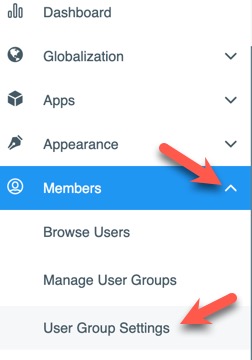
Once logged in to the ACP, navigate to Members >> User Group Settings to set user group access to features of your site.
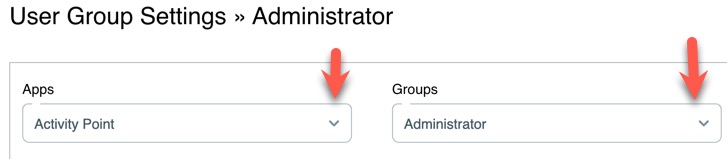
Each user group has a drop-down selector of settings that control only that user group. You'll want to set each setting as you want it for every user group.
Adding User Groups
Follow these steps to add a user group. You can choose to inherit settings from another user group which can help you create similar user groups - handy when making subscriber based communities.
- Click "Create User Group" at the top right.

- Fill in the User Group Name.
- Choose a user group to inherit settings from. If you want to create a user group without inheriting settings, please view the user group tutorial here.
- Click "Add User Group" to save this user group or Cancel if you changed your mind.
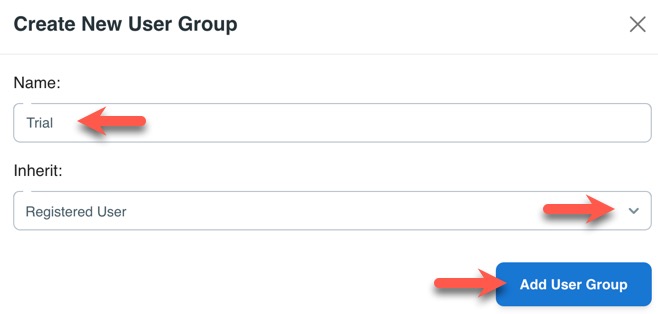
- Once save, you can either create another user group, or close the popup.
Changing User Group Settings
To set the settings for each feature, such as blogs, admin access, private messages, etc, choose the drop-down selector and find the settings you want to set. Each one has various options with a toggle, or input field, to set. You'll want to check the settings per user group to set them how you want them.
Need help?
If you need any help, drop us a line at our Konnexu Support Portal or ask a question at the Konnexu Community. We're always happy to assist.