Content Management - Konnexu Community Builder
Front End Tools
To manage content you'll need to be logged in as an admin user, or a user in a user group with permissions to do so.
Feature, Admin Edit, Delete
Navigate to the content you want to manage and click the gear icon which will open a drop-down with options:
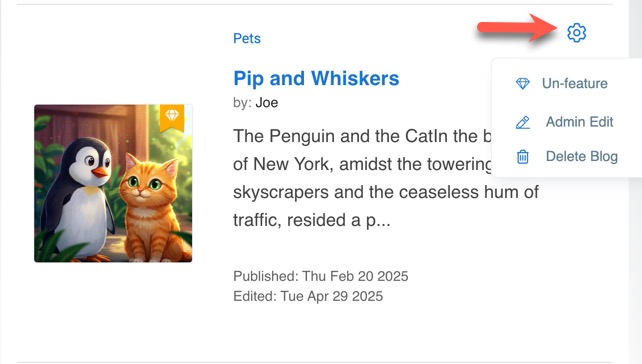
- Feature/Un-feature - this allows members in user groups with feature permission to feature and un-feature content. Featured content shows in a special widget.
- Admin Edit - special editing for admins and those in user groups with permission to use the admin edit tools. See below for more details.
- Delete Blog - delete option for those with permission to delete. This is irreversible. Once deleted, the content cannot be restored.
Admin Edit
The admin edit feature allows you to edit the following:
- Title - blog title, which is also the slug when the blog is created.
- Slug - the slug is important for SEO and should help users and search engines understand the content of the blog. Example: In the URL www.example.com/blog/my-new-post, the word blog is the category, and my-new-post is the slug, indicating the specific blog post.
- Photo - this photo is the thumbnail for the blog in the blog browse page, and also appears at the top of the blog in a banner. This is optional.
- Description - this is the content of the blog post.
- Categories
- Publish date/time
Once done editing, click the "Update" button to save your edits.
Approve or Disapprove
If you've set any member levels to require approval before their content can be viewed, here's how to approve or disapprove the content submitted.
There are two ways to see content pending approval:
- In the admin panel, a notification flag shows when content is pending approval. You can click the flag to view what's pending. Each
item in the list can be clicked to be taken to the page showing pending items. This page is in the front of the site so that members
who have permission to approve/disapprove items, but don't have admin access, can still view and take action.

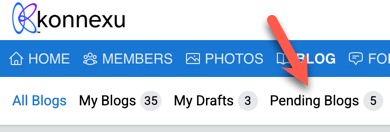
- Using blog as an example, the other way to see pending content is to navigate to the blog section and click the Pending Blogs menu tab.
Approving or Disapproving Items
We will use blog in our example. This process is the same in each app. When in the Pending Blogs tab (see above), you'll see a list of items pending approval. When you approve or disapprove content, the user who submitted the content will receive a notification of the decision. They can fix items that were not approved and resubmit them if allowed.
There are two ways to approve or disapprove content.
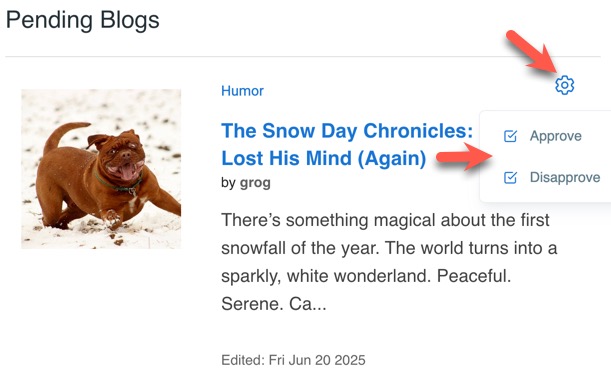
- Click the cog to the right of the item and select either Approve or Disapprove.
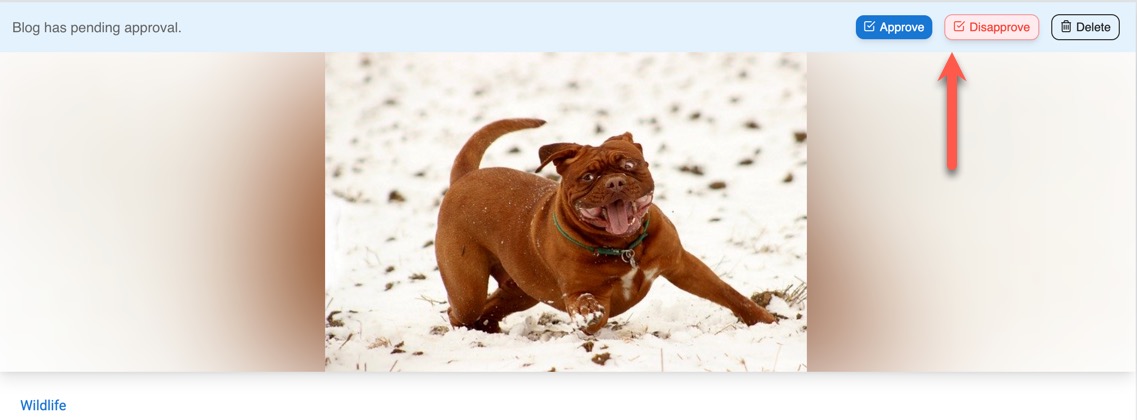
- Click the item to view it and select to Approve or Disapprove from the top buttons.
Need help?
If you need any help, drop us a line at our Konnexu Support Portal or ask a question at the Konnexu Community. We're always happy to assist.